Google Business Profile Suspension: A Small-Business Recovery Guide
A calm, evidence-led recovery checklist for small businesses facing a suspended or disabled Google Business Profile.
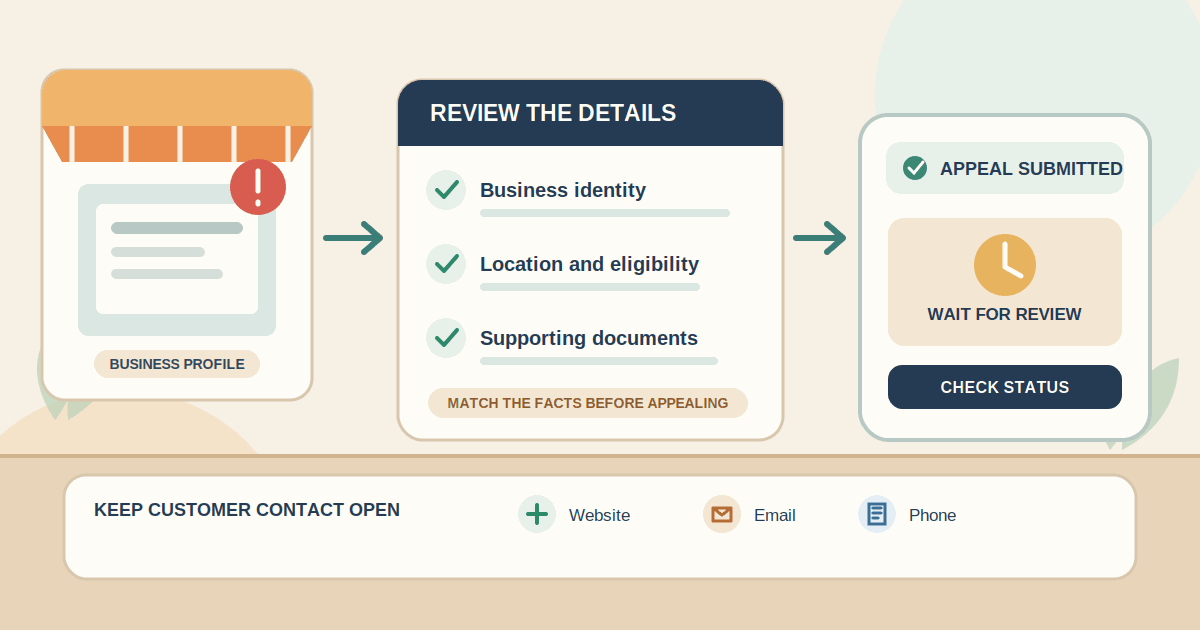
If your Google Business Profile is suspended, resist the urge to create another listing or make a series of rushed edits. First find out whether Google restricted the profile itself, the Google Account that manages it, or only a piece of content such as a post or photo. Then correct any genuine policy mismatch, prepare evidence that matches the business details, and submit one clear appeal through Google's official process.
Reinstatement is not guaranteed. Google's current help guidance says an appeal decision can take up to five business days, and it tells businesses not to submit multiple appeals for the same issue while a decision is pending. A careful first submission is more useful than a stream of duplicate requests.
Start by identifying what Google actually restricted
People often use “suspended” to describe several different problems. They do not all use the same recovery route.
- Suspended or disabled profile: the business listing itself has been restricted. For businesses outside the UK and European Economic Area (EEA), Google's current instructions direct owners to the Business Profile appeals tool.
- Restricted Google Account: the account that manages one or more profiles has a restriction. Google says that restriction must be lifted first; only then should you appeal the affected Business Profile.
- Rejected edit or restricted content: a change to the name, address, phone number or website, or an individual post, photo or video, has been rejected. Outside the UK and EEA, Google directs these cases to its contact form rather than the profile-suspension appeal route.
- Verification problem: the profile may not be verified or may need another verification step. Check its verification status before treating this as a suspension appeal.
These distinctions come from Google's appeal guidance and suspension help page. The available options can differ by region, so follow the current instructions shown for the business's country.
Record the decision before changing anything
Sign in with the Google Account that owns or manages the profile. Open the appeals tool and select the affected business. Google says the tool can show the date of the decision, the reason, a link to the policy involved, whether the decision can be appealed and the current status.
Save a private copy of the notice and record:
- the exact business name and location shown in the profile;
- the date the restriction appeared and the wording of the reason;
- the policy link supplied by Google;
- the Google Account used to manage the profile; and
- any changes made shortly before the restriction, including who made them.
Do not guess at the cause from the timing alone. A suspension that appears after an address edit does not prove that the address edit was the only issue. Use the policy link and the profile's actual operating details to guide the review.
Check the business against the rules
Before appealing, compare the listing with the way the business really operates. Google's guidelines for representing a business require accurate real-world information. They also say there should generally be one profile per business at each eligible location.
- Business name: use the name customers see on permanent signage and other real-world branding. Remove added keywords, locations, slogans, phone numbers or services unless they are genuinely part of the business name.
- Location: use the real operating address, not a remote mailbox or a rented virtual office where the business does not operate. A coworking location has to meet Google's conditions for signage, staffing and customer access.
- Service-area setup: if the business travels to customers and does not receive them at its address, review whether the address should be hidden and the service area shown instead.
- Categories: keep only the fewest accurate categories needed to describe the core business. Do not use categories as a list of search keywords.
- Duplicates: check whether another profile already represents the same business at the same location. Do not create a replacement listing while the appeal is being reviewed.
- Website and phone: confirm that the website represents the business and that the phone number is under its direct control.
If the business model, address or category is genuinely ineligible, documents alone will not fix that. Correct the underlying issue where possible; do not invent a storefront, change the name to chase searches or claim an address the business does not operate from.
Prepare a small, matching evidence pack
Google lists official business registration, a business licence, tax certificates and utility bills as examples of evidence that can support an eligible appeal. Its guidance specifically says the business name and address on submitted documents should match the profile details.
Prepare the files before starting the appeal. A useful pack is usually a few strong, readable documents rather than a large collection of unrelated attachments:
- Identity: a current business registration or licence showing the legal or trading name.
- Location: a recent utility bill or other official document showing the same operating address, where an address is meant to be displayed.
- Permission to operate: a relevant professional or local licence if the business type requires one.
- Operating context: if the form permits it and it genuinely helps, a concise explanation of how customers visit the premises or how the service-area business operates.
Check spelling, abbreviations, suite numbers and old addresses before uploading. If a legitimate difference exists—for example, a registered legal name differs from the storefront trading name—explain the relationship clearly and provide supporting evidence. Never alter a document to make it match.
Keep sensitive records inside Google's official appeal flow. Do not post licences, tax certificates, utility bills, account emails or profile identifiers in a public forum. Redact information that is not needed to establish the business and location, while keeping the relevant matching details readable.
Submit one focused appeal
For a profile suspension, use the official suspension instructions and open the appeals tool. Select the correct profile, read the policy reason, and attach the evidence before the final submission. Google's current flow says an appeal can only be submitted once for that decision.
Keep the explanation factual and short. A useful structure is:
- Identify the business and the profile being appealed.
- State how the business actually operates and why it is eligible.
- Identify the specific information or policy issue you reviewed.
- Describe any genuine correction already made, without claiming changes you did not make.
- List the attached documents and explain what each one proves.
Avoid emotional arguments, ranking claims, long histories unrelated to the policy or repeated requests for faster treatment. The reviewer needs to understand the business, the possible mismatch and the evidence supporting reinstatement.
If the appeal tool says the Google Account is restricted
Google's instructions are explicit: when the managing Google Account is restricted, appeal that account through the account-restrictions page first. After the account restriction is lifted, submit the separate appeal for the Business Profile.
There are recent Google Business Profile Community reports in which the appeals tool displayed an account-restriction message while the account page appeared to show no restriction. These are individual reports, not an official explanation or a universal fix. If you see that mismatch, confirm you are signed into the correct owner account, capture both screens, and contact Business Profile support with the exact error and profile details. Do not transfer ownership, create a new account or remove managers solely because an online forum suggested it.
If the tool says there is no restricted content or nothing available to appeal, Google's help page says to contact support so the team can confirm whether another appeal is available. Use the route shown in the current help page rather than a third-party form copied from an old tutorial.
What to do while Google reviews the case
Google says appeal decisions can take up to five business days. Check the status in the appeals tool and wait for the decision before submitting another appeal for the same issue. The status options can include Submitted, Approved, Not approved, Can't be appealed and Eligible for appeal.
Keep customer enquiries moving through channels you control:
- make sure the business website shows the correct phone number, email address and opening information;
- tell existing customers how to contact you directly if they normally use Maps to find the business;
- keep social profiles and other legitimate directories accurate; and
- measure website enquiries separately from Business Profile interactions so the temporary loss of one channel does not make all demand invisible.
Our small-business lead-tracking guide explains how to distinguish website enquiries from clicks and other activity. Do not create a duplicate Business Profile to replace the missing listing; Google's appeal guidance expressly warns against doing that while a case is under review.
If Google does not approve the appeal
Read the decision and compare it with the evidence you submitted. If Google marks the reinstatement request as denied, it may allow an additional review. Google's suspension help page says that this later review can include evidence that was not part of the original appeal. It is a further review opportunity, not a guarantee of reinstatement.
Use the additional-review route only when the original request has been denied and the tool says the option is available. Add genuinely new or clearer evidence, address the reason in the decision, and avoid resubmitting the same pack without explanation. If the status is “Can't be appealed” or the tool does not expose an eligible action, contact support and ask what review route remains available.
After reinstatement: prevent another avoidable restriction
Once the profile is restored, confirm that it is visible and that the owner account can manage it. Review the business name, address or service area, category, phone, website and hours against the real operation. Keep primary ownership with the business and give agencies only the access they need.
Google's third-party policies require agencies to be transparent about their role and prohibit misleading claims. Be cautious of anyone promising guaranteed reinstatement, asking for your password or verification code, or claiming to be Google when they are not. An adviser can help audit a profile or organise evidence; Google makes the reinstatement decision.
For ongoing profile maintenance, see our Google Business Profile local SEO guide. It covers eligibility, accurate profile details, reviews, photos and performance checks—the routine work that should happen before a suspension, not as a rushed reaction to one.
A practical recovery sequence
- Identify whether the issue is a profile suspension, account restriction, content rejection or verification problem.
- Read the policy reason and check the real-world business details against Google's guidelines.
- Prepare a small set of current documents with matching business and location information.
- Submit one clear appeal through the correct regional route and keep the confirmation.
- Wait for the decision, maintain other customer-contact channels and use an additional review only if Google makes it available after denial.
The most useful appeal is not the longest one. It is the one that makes the business easy to understand, addresses the policy concern directly and gives Google consistent evidence to review. If the profile is not eligible, fix the business representation rather than trying to out-edit the policy.
Official references and further reading
- Google Business Profile: Fix suspended or disabled profiles — appeal steps, account restrictions, status checks and additional review.
- Google Business Profile: Appeal content and profile restrictions — regional appeal routes, evidence requirements and the current review process.
- Google: Guidelines for representing your business — real-world business name, address, service area, categories and duplicate-location rules.
- Google Business Profile: Third-party policies — rules for agencies and other profile managers.
- Google Business Profile Community: Appeals-tool account-status mismatch — an individual community report, included as an example of a tool issue rather than official policy.
Checked on 27 November 2026. Google's support flows and policy pages can change, and options vary by country. This guide is practical information, not legal advice or a promise that an appeal will be approved.
Related articles
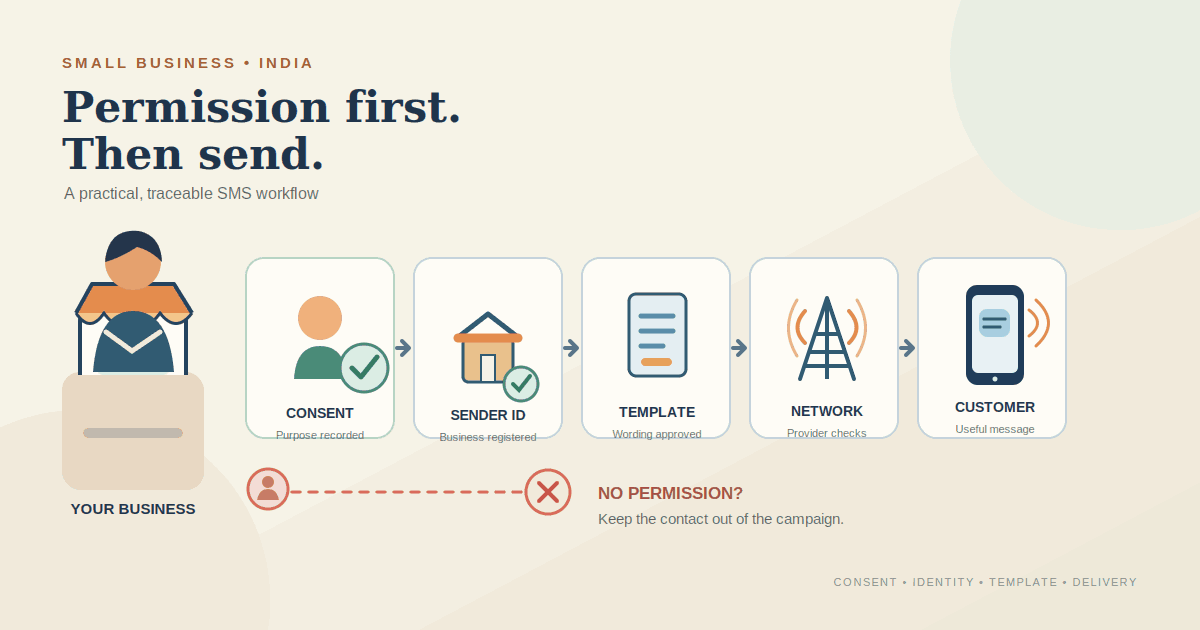
SMS Marketing in India: A DLT Checklist for Small Businesses
A practical guide for Indian small businesses to plan permission-based SMS, understand TRAI DLT records, choose a provider, control costs and measure results.
Read article
Looking for the Best Website Design and Development Company in Lucknow? Meet AKS Techies
From business and WordPress websites to online stores and custom web applications, AKS Techies offers direct developer-led website design and development for businesses in Lucknow.
Read article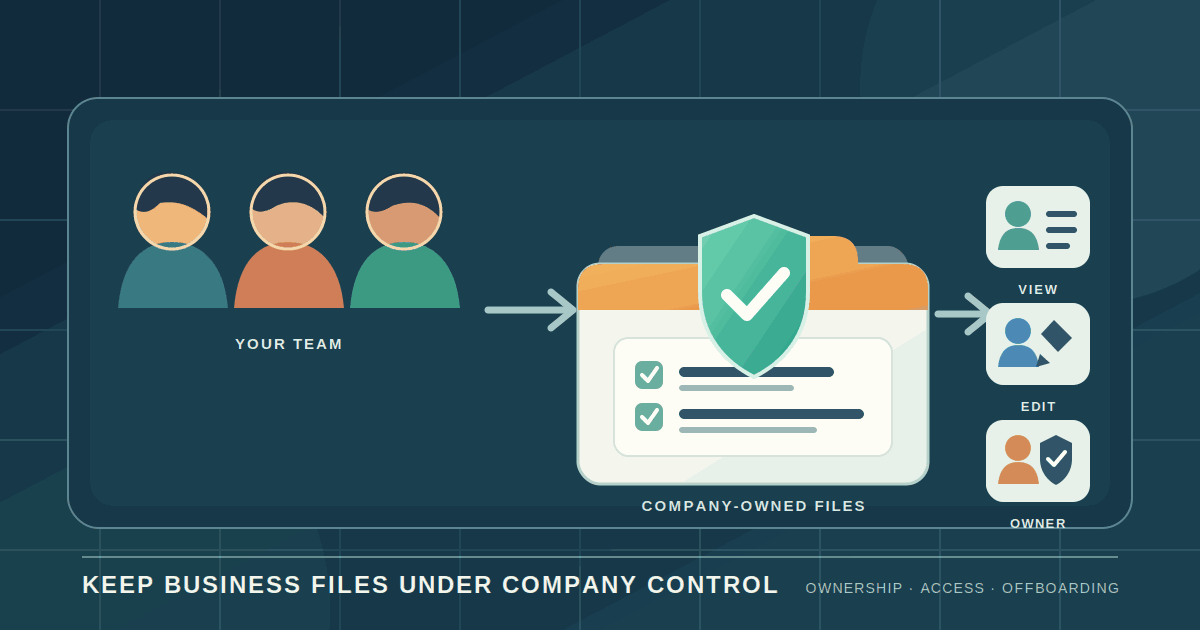
Where Should Your Business Files Live? Google Drive vs SharePoint
Choose a team-owned home for important business files. Compare Google Shared Drives and Microsoft SharePoint, set safer permissions and plan employee offboarding.
Read articleLet's talk
Have an idea? Let's figure out how to build it.
You don't need a technical specification or a perfectly defined plan. Tell us what you're trying to achieve, and we'll help identify the next steps.