Where Should Your Business Files Live? Google Drive vs SharePoint
Choose a team-owned home for important business files. Compare Google Shared Drives and Microsoft SharePoint, set safer permissions and plan employee offboarding.
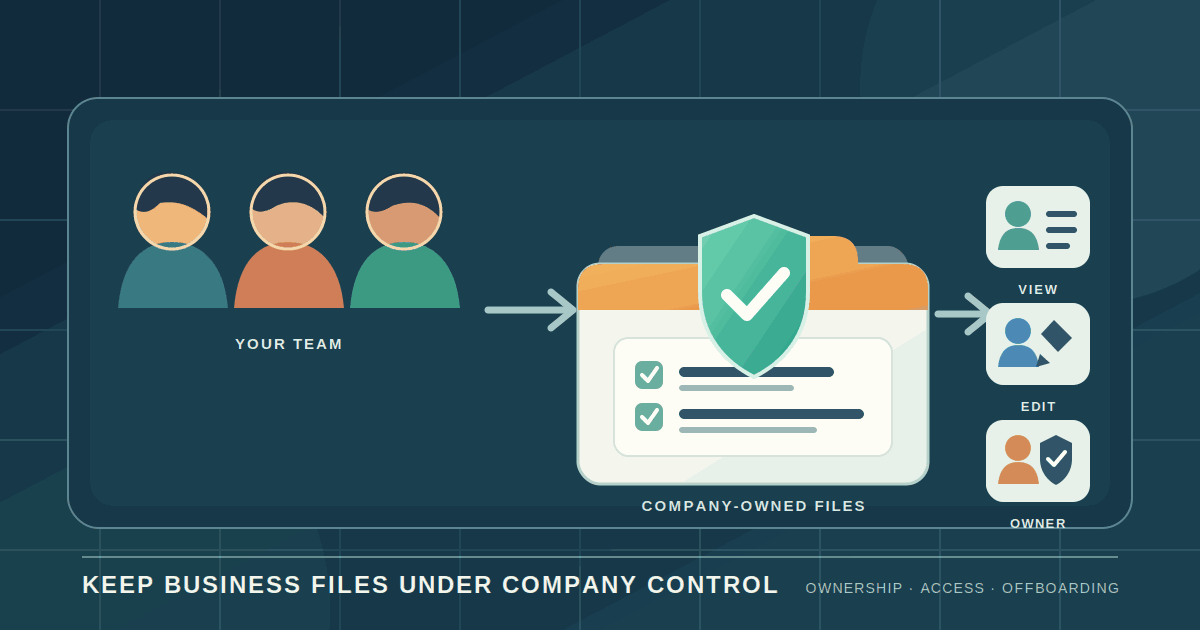
If your business files live in one employee's personal Google Drive or OneDrive, sharing them with the rest of the team does not make the business their owner. That difference matters when someone changes roles, leaves, or loses access to their account.
The practical rule is simple: keep personal drafts in personal storage, but put records the business must retain in a team-owned location. In Google Workspace, that usually means a Shared Drive. In Microsoft 365, it usually means a SharePoint team site or document library. Use the tools you already pay for where they fit; the important work is setting ownership, permissions and offboarding rules deliberately.
Start with the question: who needs this file after its creator leaves?
A file's location should reflect who is responsible for it, not who happened to create it first.
- Personal working files: drafts, notes and temporary material that one person is actively preparing can stay in their own Drive or OneDrive.
- Shared business records: approved proposals, operating procedures, product information, project records and team templates should live in a shared location the organisation controls.
- Restricted records: payroll, personnel, financial and leadership documents should be in a separate location with a deliberately small membership.
- External collaboration: client or agency material should have a clearly bounded workspace or folder, not an open invitation to the whole company repository.
Use a simple test before creating or moving a file: if the person who created it left tomorrow, would the business still need it, and should another authorised person be able to find it? If yes, it belongs in a team-controlled location.
Google Workspace and Microsoft 365: the right places are different
These products use different names, but the underlying distinction is similar: personal work belongs in an individual's space; shared records belong in a space managed for a team.
- Google Workspace: My Drive is associated with an individual owner. Shared Drives are team spaces; files in them belong to the organisation rather than the person who created them. Google says those files remain when a member leaves. Shared Drive membership and creation are listed for Business Starter, Standard and Plus, subject to Google's stated business-email or domain-verification requirement. The current edition comparison lists advanced shared-drive sharing, access and storage-limit controls for Standard and Plus rather than Starter. Check the controls included in your actual edition before designing sensitive-data access around them.
- Microsoft 365: OneDrive for work or school is primarily an individual's document library. SharePoint team sites are intended for regular collaboration and shared ownership. Files uploaded to a Teams channel are stored in the team's SharePoint folder; files sent in a chat are stored in the sender's OneDrive for work or school. Teams is therefore a way to work with these storage locations, not a separate place where all files live.
Do not treat Google Shared Drives and Microsoft OneDrive as direct equivalents. The closer comparison is Shared Drives versus SharePoint team sites for team records, and My Drive versus OneDrive for an individual's working files.
If your business already uses one suite for email, calendars and documents, start there. Running two primary file repositories usually adds another place to search, another permission model to maintain and another migration to plan. A second service may be justified, but name the reason and decide which system is authoritative for each kind of record.
Build the structure around access, not a long list of departments
Start small. A five-person business does not need dozens of drives or sites. It does need clear boundaries where the people who should see one set of files are not automatically allowed to see another.
A practical starting layout is:
- Company: approved policies, templates, brand assets and general operating documents.
- Sales and delivery: proposals, project material and working records used by the relevant team.
- Finance and people: invoices, payroll, contracts and personnel records, restricted to the owner and authorised staff.
- Client or partner work: a separate workspace for each client or external partner when access must be isolated.
In Google Shared Drives, members can normally see all files in the drive. Limited-access folders can narrow access, but a folder is not a safe substitute for a separate drive when the information must be strongly separated. Google's guidance also explains that folder access cannot be made more restrictive than the shared drive's own membership in every situation. For finance or HR material, a separate drive is often easier to reason about.
In Microsoft 365, use separate SharePoint team sites when the audience or sensitivity is different. Microsoft's small-business guidance specifically recommends separate team sites for units of work and gives personnel and financial files as examples of material that should remain private to a smaller team.
Give each important location at least two active owners as a business rule, even if only one person does most of the day-to-day organising. An owner should know why the location exists, who approves access and what happens when the team changes.
Set permissions so that sharing does not become permanent oversharing
Begin with named people or managed groups, not public links. Give someone the least access needed to do their work: view when they only need to read, comment when feedback is enough, and edit or manage access only when their role requires it.
For Google Shared Drives, the main roles are Manager, Content manager, Contributor, Commenter and Viewer. Keep Manager access for the people who are responsible for membership and drive settings. Most staff who need to add or update files do not need to be Managers. Use groups for stable teams where practical, so a role change can be handled by updating group membership instead of hunting through individual files.
For SharePoint and OneDrive, review both the organisation-wide external-sharing policy and the settings for each site. Microsoft allows administrators to make a site more restrictive than the organisation-wide setting. An Anyone link can be opened by whoever has it without signing in, and it may be forwarded. Avoid that link type for customer records, contracts, finance files and other sensitive material. Prefer named-person access or authenticated guest access, and set guest expiry where the business needs it and the plan supports it.
For a client or agency, share only the workspace or files they need. Before sending a link, check the account shown in the sharing dialog, the permission level, whether download or editing is allowed, and whether the access has an expiry. When the work ends, remove the guest and review any links that were created for them.
Move existing files in stages, not with one big drag-and-drop
Moving files into a team space can change who can see them. Treat migration as a permission change, not just a tidy-up exercise.
- Inventory the current locations. Identify important files in personal drives, shared folders, old team sites and email attachments. Record the current owner, people with access, sensitivity and business purpose.
- Choose the destination and its owners. Create the target drive or site, agree the membership groups and test access with one ordinary employee and one restricted user.
- Pilot a small, low-risk folder. Move a few representative files. Test opening, editing, sharing, desktop sync and any links used by staff or customers.
- Review permissions after the move. Check the actual access list rather than assuming it was preserved exactly. Keep the original location available until the new copy is verified and the team knows where to work.
- Record the new home. Update the team's bookmarks, operating instructions and handover notes. Remove the old duplicate only after the owner has confirmed the move.
There is an important Google-specific caution: when files move from My Drive into a Shared Drive, direct file permissions may remain, but permissions inherited from a parent folder are not copied in the same way. Moving a folder can also make previously hidden files visible to members of the destination drive. Check the access rules for every sensitive folder before moving it, and use a small pilot first.
Do not confuse synchronisation with backup. A shared drive or SharePoint library makes collaboration easier; it does not by itself provide an independent recovery plan. Keep a separate backup and test restores. Our small-business data backup guide covers recovery targets, protected copies and restore testing.
Make file ownership part of employee offboarding
Do not wait until after an account is deleted to discover which important records were stored in it. Add a file review to the same checklist used for account access, devices and company property.
- Identify business files still owned by the departing person's My Drive or stored in their OneDrive.
- Move active team records into the correct shared drive or SharePoint site, or use the platform's supported administrative transfer process.
- Open a sample of the moved files with the people who will own the work next. Confirm that links, editing and required history are still usable.
- Remove the departing person from shared-drive, site, group and guest memberships when their access should end. Review direct file shares as well as team membership.
- Keep records that must be retained under the business's retention, legal and regulatory requirements. Do not delete an account until the authorised owner has confirmed the data handover.
Google Workspace administrators can transfer eligible Drive files from one active user in the organisation to another before deleting the account. Files already in Shared Drives do not need an individual owner transfer because the organisation owns them.
Microsoft documents a default 30-day retention period for a deleted user's OneDrive, but administrators can change that period and configure access delegation. Treat it as an administrative recovery window, not as the normal home for shared company records. Check your tenant's actual retention settings and move important files to a team site before the account is removed.
Protect the administrator accounts that can change these permissions. If an attacker takes over an owner account, a tidy folder structure will not save the business. Our passkeys rollout guide for small businesses explains how to strengthen sign-in while planning recovery.
A short access review that keeps the system healthy
Put a recurring review on the calendar—quarterly is a sensible starting point for many small businesses, and more often for locations containing sensitive or frequently shared records. The review does not need to become a large compliance project.
- List every shared drive, SharePoint site and important shared folder.
- Confirm each location has an active business owner and a backup owner.
- Review members, external guests and people who changed roles.
- Look for Anyone links, old client invitations and direct file shares that no longer have a clear purpose.
- Check that Finance, HR and other restricted records are not stored in a broadly accessible location.
- Confirm recent leavers have no remaining access and that their business files have been handed over.
- Check that the separate backup process still runs and that a restore has been tested.
Track a few simple measures: the number of critical locations without two active owners, the number of unresolved external-access exceptions, and whether each departure completed a file handover before account deletion. These measures show whether the process is being maintained; they are not a substitute for checking the actual permissions.
What does this cost, and when is a bigger setup unnecessary?
If your current Microsoft 365 or Google Workspace subscription already includes the team-storage features you need, the first cost may be staff time rather than a new software bill. Allow time for sorting old files, reviewing access, training people and maintaining the structure. More advanced controls, retention features or storage capacity may require a different edition or add-on, so confirm the exact entitlement before promising a capability.
A sole proprietor who works alone may not need multiple shared locations. A small team with a handful of shared documents can start with one well-managed team space and a clear owner. Add separate sites or drives when access boundaries genuinely differ, not simply because a template recommends them. If nobody is responsible for reviewing permissions, a complex structure can become harder to manage than a simple one.
Choose one team home and make the handover routine
For Google Workspace, use Shared Drives for records the organisation must retain and keep My Drive for personal working files. For Microsoft 365, use SharePoint team sites for shared business records and OneDrive for individual work. In either platform, separate sensitive information, use named access, keep more than one responsible owner and make file handover part of offboarding.
Start with the few locations that matter most: finance, customer work, company policies and current projects. Set their owners and members, test the permissions, move a small sample, then expand. A business should never have to rely on one former employee's personal account to find the files it needs to keep operating.
Further reading
- Google Workspace: What are shared drives? — ownership, team membership and how Shared Drives differ from My Drive.
- Google Workspace: How file access works in shared drives — roles, folder access, sharing and migration behaviour.
- Google Workspace: Compare Business editions — current edition-level Drive controls.
- Google Workspace: Transfer Drive files to a new owner as an admin — administrative transfer before account deletion.
- Microsoft Learn: Set up file storage and sharing in Microsoft 365 — OneDrive and SharePoint guidance for small businesses.
- Microsoft Support: File storage in Microsoft Teams — where channel and chat files are stored.
- Microsoft Learn: Manage sharing settings for SharePoint and OneDrive — organisation and site-level external-sharing controls.
- Microsoft Learn: OneDrive retention and deletion — what happens when a user account is deleted.
Product and administrative documentation checked on 23 November 2026. Available controls depend on subscription, tenant configuration and region; confirm the current settings in your own admin console before migration.
Related articles

Looking for the Best Website Design and Development Company in Lucknow? Meet AKS Techies
From business and WordPress websites to online stores and custom web applications, AKS Techies offers direct developer-led website design and development for businesses in Lucknow.
Read article
Website Hosting for Small Businesses: How to Choose
Compare shared, managed WordPress, VPS and cloud hosting for a small-business website. Learn what changes the real cost, reliability, support and migration effort.
Read article
Small Business Inventory Management: A Practical Guide
A practical guide to tracking stock, setting reorder points, choosing inventory software and keeping small retail operations accurate across store and online sales.
Read articleLet's talk
Have an idea? Let's figure out how to build it.
You don't need a technical specification or a perfectly defined plan. Tell us what you're trying to achieve, and we'll help identify the next steps.