Google Business Profile for Small Businesses: A Practical Local SEO Guide
A practical guide to setting up and maintaining a Google Business Profile: eligibility, categories, addresses and service areas, reviews, photos, local ranking factors and performance checks.
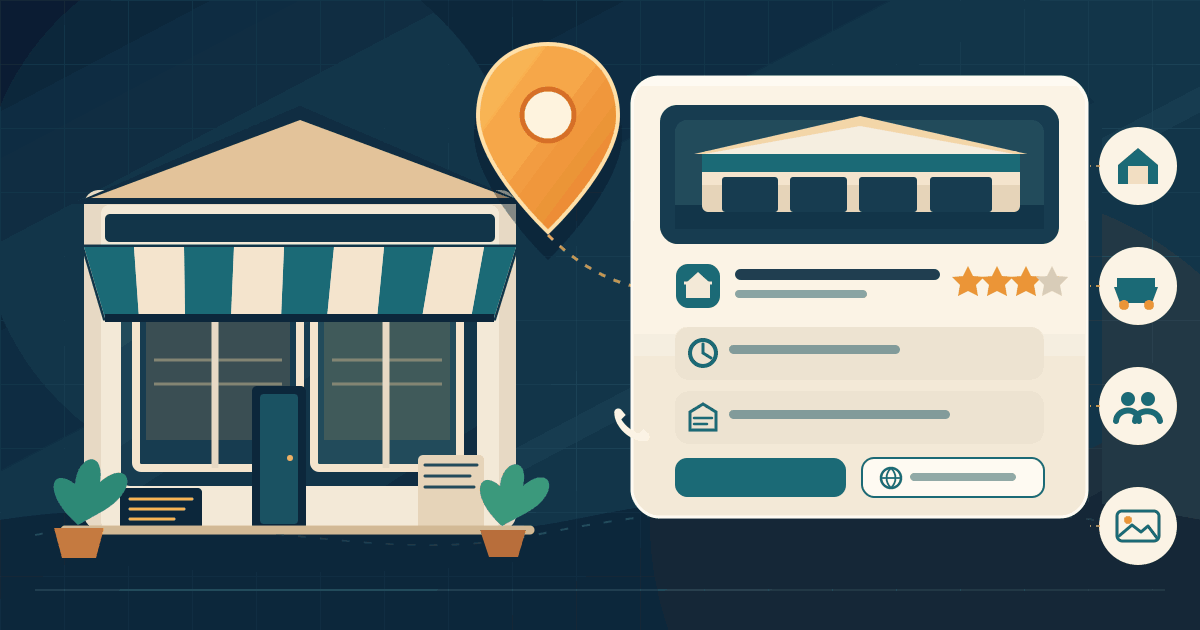
When someone searches for a nearby service, they often compare a few businesses before calling or opening a website. A useful Google Business Profile puts key details in Google Search and Maps.
It is not a shortcut to the top of local results. Focus on eligibility, accurate information, the right category, genuine reviews and useful performance checks—not ranking tricks or paid-placement promises.
1. Check whether your business is eligible
A profile is for businesses that make in-person contact with customers during stated hours. Shops, clinics, restaurants and qualifying service-area businesses can be eligible.
Online-only businesses, lead-generation companies, remote mailboxes and virtual offices are among Google's ineligible cases. A coworking office must be a genuine staffed location with clear signage and customer access.
Check the official eligibility and ownership rules before creating a listing. If the business does not qualify, do not invent a location or use another company's address. Improve the business website and other legitimate discovery channels instead.
2. Find an existing profile, then claim and verify it
Search Maps and Search for the business name and location first. If a listing already represents the business, claim it instead of creating a duplicate.
Use a Google Account controlled by the owner. Google chooses the verification methods available for each profile, so follow the option shown rather than expecting a specific phone, email or video process.
Keep the owner as primary owner. Add staff or an agency through profile access controls; never share the owner's password or a verification code. Google's verification guide explains the current process.
3. Enter accurate business information
Treat the profile as a public business record. Customers should quickly understand what you offer, where you operate, when you are available and how to contact you.
- Name: Use the real-world name shown on your branding and signage. Do not add search keywords, locations, phone numbers or promotional wording; unnecessary additions can put the profile at risk.
- Address: If customers visit, enter the precise address and map pin. Do not use a P.O. box, remote mailbox or virtual office.
- Phone and website: Use working contact details and a website that represents the business.
- Hours: Keep normal and special hours current, including holiday closures.
- Description and services: Describe real offerings plainly. Avoid keyword lists and exaggerated claims.
Do not create duplicate profiles to target more keywords or neighbourhoods. Each genuine location must represent a real operation.
4. Choose the most accurate business category
Your primary category is one of the clearest signals about what the business does. Choose the most specific available category that describes the core business, not the category that sounds most popular. A bakery that mainly sells baked goods should not choose a broad restaurant category simply because it wants to appear for more searches.
Add only a small number of additional categories when they describe substantial parts of the business. Do not add a category for every product, service or keyword. Google maintains a predefined list; you cannot create your own category. The category guidance explains how categories affect the searches a profile may match and how to edit them.
5. Set up a service area correctly
If customers do not visit your address, use the service-area setup and remove the public address. Add only the cities or postal areas you genuinely serve.
Google allows up to 20 service areas and says the overall area should generally stay within about two hours of driving time from the business base. You cannot set a simple radius. A hybrid business that also receives customers can show its address and list a service area. See Google's service-area guidance before changing these settings.
6. Add photos that help customers recognise the business
Use real, current images that help customers recognise the premises or understand the service: the entrance, interior, representative products or team at work.
Google recommends clear, well-lit JPG or PNG photos, 720 by 720 pixels where possible and at least 250 by 250 pixels. Its guidance gives a 10 KB to 5 MB range. Avoid misleading edits or excessive filters and AI alteration; images should represent reality. See Google's photo guidance.
7. Build a steady, honest review process
Ask genuine customers for honest feedback after a real interaction. A neutral request with Google's review link or QR code is acceptable; customers must be free to write a positive, mixed or negative review.
Never buy reviews, offer incentives, pressure customers, ask staff to review or selectively solicit only positive feedback. Google prohibits discouraging negative reviews and requesting specific wording.
Reply professionally, take complex issues private and never expose customer information. See Google's review guidance and Maps content policy.
8. Understand what local ranking can and cannot do
Google says local results mainly reflect relevance, distance and prominence. Relevance is how well the profile matches a query; distance is proximity to the searcher; prominence is how well-known the business is, with reviews and links among the signals.
Improve what you control—accuracy, category, hours, photos and customer responses. You cannot edit your way closer to a searcher, and no checklist guarantees a fixed position. Google says there is no way to request or pay for a better organic local ranking. Ads buy ad placement, not a higher organic Maps position. See Google's local ranking explanation.
9. Measure useful activity, not just a ranking screenshot
After verification, review the Performance report monthly. Depending on the profile, it may show searches, views, call-button clicks, direction requests, website clicks, messages and bookings.
These are interactions, not confirmed sales: a call-button click may not connect, a direction request does not prove a visit, and a website click is not a purchase. Compare the report with enquiries or appointments your team handled. For the next step, see our guide to tracking website leads with GA4. Google's Performance guide explains available metrics.
10. Decide whether you need outside help
The profile itself is free. An agency may charge for audits, updates, photos or review management, but that fee does not buy a higher ranking.
Before hiring help, agree on the work, access, owner, reporting and monthly cost in writing. Keep primary ownership with the business. Treat guaranteed rankings, claims of being Google and threats about removing your listing as warning signs. See Google's third-party guidance.
A practical 30-day setup plan
- Week 1: Confirm eligibility, find an existing listing, claim it and complete Google's verification.
- Week 2: Correct the name, category, address or service area, contact details and hours.
- Week 3: Add genuine photos, check service details, request honest reviews and reply to feedback.
- Week 4: Record Performance metrics, test contact links and assign a monthly profile owner.
This is a maintenance routine, not a promise of a top-three ranking in 30 days. Visibility varies by searcher location and local competition.
Conclusion
A useful Google Business Profile is accurate, eligible and maintained. Use the real business details, select the right category, set the address or service area honestly, add genuine photos and invite honest reviews. Then review Performance data to see whether people are finding and contacting you.
Do not buy ranking promises or manipulate the listing. A reliable profile helps nearby customers make an informed choice, even when it cannot guarantee the first position.
Further reading
- Google: Tips to improve your local ranking
- Google: Guidelines for representing your business
- Google: Business eligibility and ownership
- Google: Service-area and hybrid businesses
- Google: Manage business categories
- Google: Tips to get more reviews
- Google: Business-specific photo guidance
- Google: Understand Business Profile performance
- Google: Working with third parties
Related articles
Website Accessibility for Small Businesses: A Practical WCAG 2.2 Checklist
A practical guide to making a small-business website easier to use with a keyboard, screen reader, touch controls and assistive technology—without starting with a costly redesign.
Read article
Why Business Emails Land in Spam: A Practical SPF, DKIM and DMARC Guide
Learn how small businesses can improve email deliverability with SPF, DKIM, DMARC, one-click unsubscribe, list hygiene and practical monitoring.
Read article
Website Lead Tracking for Small Businesses: A Practical GA4 Guide
Learn how to measure real website enquiries from forms, phone calls and WhatsApp—not just traffic—with GA4, campaign tags and CRM feedback.
Read articleLet's talk
Have an idea? Let's figure out how to build it.
You don't need a technical specification or a perfectly defined plan. Tell us what you're trying to achieve, and we'll help identify the next steps.